

Free HTTPS for Kubernetes: Auto-Renewing Let's Encrypt Certificates

Free HTTPS for Kubernetes: Auto-Renewing Let’s Encrypt Certificates
You have a cluster. You have a domain. Now it’s time to introduce them properly—with encryption, because we’re not savages running plaintext in 2025. This guide wires your domain through Hetzner DNS, points it at your floating IP, and hands off TLS certificate management to cert-manager. The result: automatic HTTPS with zero manual renewal headaches. Forever.
Init
What you need
Before diving in, ensure you have:
A running k3s cluster from the Hetzner Terraform setup
A domain registered with any provider (we’ll migrate nameservers)
kubectlconfigured against your clusterTerraform with your existing cluster state
pingandcurlcommand make remote requestshelmto installcert-manager
Apply
Setup DNS provider
Your domain registrar handles registration, but Hetzner will handle resolution. Head to your registrar’s dashboard and update the nameservers to:
helium.ns.hetzner.dehydrogen.ns.hetzner.comoxygen.ns.hetzner.com
DNS propagation can take anywhere from seconds to 48 hours depending on your registrar and TTL settings—grab a coffee, or several
Using Hetzner's nameservers keeps your infrastructure consolidated. More importantly, it enables Terraform to manage DNS records alongside your cluster resources—single source of truth, single terraform apply. The alternative is juggling Cloudflare tokens, Route53 IAM policies, or manual record updates like it's 2010.
Setup DNS in terraform
Pre-require: floating IP output
If you built your cluster through Terraform following Self-host K8s article, this block should already exist in your kube.tf. If not, add it or replace with static IP address—we need the public IP programmatically available for DNS records.
kube.tf
data "hcloud_floating_ips" "all" {
  depends_on = [module.kube-hetzner]
}

output "floating_ip" {
  description = "Your public IP—point DNS here"
  value       = data.hcloud_floating_ips.all.floating_ips[0].ip_address
}
DNS definition
Now the actual DNS zone and records. We create an A record for the apex domain and a wildcard for subdomains—both pointing at your floating IP.
kube.tf
# === INPUT VARIABLES ===
locals {
  # ...
  base_domain = "***"
}

variable "base_domain" {
  description = "Base domain for the cluster, e.g. example.com"
}

# === DNS ZONE & RECORDS ===
resource "hcloud_zone" "my_domain" {
  name = var.base_domain != "" ? var.base_domain : local.base_domain
  mode = "primary"
  ttl  = 3600
}

resource "hcloud_zone_rrset" "root" {
  zone    = hcloud_zone.my_domain.id
  name    = "@" # main domain
  type    = "A"
  ttl     = 300
  records = [
    {
      value = data.hcloud_floating_ips.all.floating_ips[0].ip_address
    }
  ]
}

resource "hcloud_zone_rrset" "wildcard" {
  zone    = hcloud_zone.my_domain.id
  name    = "*" # all sub-domains
  type    = "A"
  ttl     = 300
  records = [
    {
      value = data.hcloud_floating_ips.all.floating_ips[0].ip_address
    }
  ]
}
Base domain value****
Make sure you export variable
bash
export TF_VAR_base_domain="your-domain.com"
fish
# fish
set -xg TF_VAR_base_domain "your-domain.com"
Or define corresponding local value
locals {
  # ...
  base_domain = "your-domain.com"
}
Run terraform apply and let Hetzner propagate your records.
First check
Time to verify the plumbing. First, grab your floating IP
terraform output floating_ip
Then confirm DNS resolution points to it
ping your-domain.com
You should see something like
PING your-domain.com (XXX.XX.XXX.XXX) 56(84) bytes of data.
64 bytes from static.XXX.XXX.XXX.XXX.clients.your-server.de (XXX.XX.XXX.XXX): icmp_seq=1 ttl=47 time=69.7 ms
64 bytes from static.XXX.XXX.XXX.XXX.clients.your-server.de (XXX.XX.XXX.XXX): icmp_seq=2 ttl=47 time=77.7 ms
...
The IP in parentheses must match your floating_ip output. If it doesn’t, wait for DNS propagation or double-check your nameserver configuration in your domain provider portal.
Now test HTTP connectivity
curl http://your-domain.com
Expected response:
<!DOCTYPE html>
<html>
<head>
<title>Welcome to nginx!</title>
<style>
html { color-scheme: light dark; }
body { width: 35em; margin: 0 auto;
font-family: Tahoma, Verdana, Arial, sans-serif; }
</style>
</head>
<body>
<h1>Welcome to nginx!</h1>
<p>If you see this page, the nginx web server is successfully installed and
working. Further configuration is required.</p>

<p>For online documentation and support please refer to
<a href="http://nginx.org/">nginx.org</a>.<br/>
Commercial support is available at
<a href="http://nginx.com/">nginx.com</a>.</p>

<p><em>Thank you for using nginx.</em></p>
</body>
</html>
Don't bother testing in a browser yet—modern browsers force HTTPS redirects via HSTS preloading, and you'll get a security warning. The curl test confirms your ingress works; TLS comes next.
Real-world Application
Prepare for TLS challenge (HTTP-01)
Congratulations, you now have a domain pointing at a cluster serving unencrypted traffic. Your 2005 PHP forum would be proud. Let’s fix that embarrassment with cert-manager and Let’s Encrypt.
Install cert-manager
Make sure in pod list there are cert-manager namespace, if it’s missing install it through helm command
helm repo add jetstack https://charts.jetstack.io && \
helm repo update && \
helm install cert-manager jetstack/cert-manager \
  --namespace cert-manager --create-namespace \
  --version v1.16.0 \
  --set crds.enabled=true
Certificate Issuer
With cert-manager running, define a ClusterIssuer to handle certificate requests across all namespaces. We’re using HTTP-01 challenge through Cilium’s ingress controller.
cluster-issuer.yaml
apiVersion: cert-manager.io/v1
kind: ClusterIssuer
metadata:
  name: letsencrypt-prod
spec:
  acme:
    server: https://acme-v02.api.letsencrypt.org/directory
    email: your-email@your-domain.com # <-- your email here
    privateKeySecretRef:
      name: letsencrypt-prod-account-key
    solvers:
    - http01:
        ingress:
          ingressClassName: cilium
Update values and apply it
kubectl apply -f cluster-issuer.yaml
HTTP-01 Challenge (what we're using)
- How it works: Let's Encrypt asks cert-manager to serve a specific token at
http://your-domain.com/.well-known/acme-challenge/<token>. If Let's Encrypt can fetch it, you've proven domain ownership. - Requirements: Port 80 must be open and reachable from the internet. Your ingress controller must be working.
- Pros: Simple setup, works out of the box with any ingress controller, no DNS provider API access needed.
- Cons: Can't issue wildcard certificates (
*.your-domain.com). Won't work for internal-only services that aren't internet-accessible. - Best for: Public-facing services, simple setups, getting started quickly.
DNS-01 Challenge
- How it works: Cert-manager creates a TXT record at
_acme-challenge.your-domain.comvia your DNS provider's API. Let's Encrypt verifies the record exists. - Requirements: API credentials for your DNS provider (Hetzner, Cloudflare, Route53, etc.). More complex cert-manager configuration with secrets.
- Pros: Supports wildcard certificates. Works for internal services with no public ingress. No port 80 requirement.
- Cons: Requires DNS provider integration. More moving parts. Propagation delays can cause validation failures.
- Best for: Wildcard certs, internal services, staging environments, multi-tenant platforms.
The pragmatic choice: Start with HTTP-01. It covers 90% of use cases with minimal configuration. Graduate to DNS-01 when you need wildcards or internal service certificates—we'll cover that setup in a future guide.
Update Ingress
Now update your existing nginx ingress to request a certificate. The annotations tell cert-manager which issuer to use and how to handle the challenge.
nginx-ingress.yaml
apiVersion: networking.k8s.io/v1
kind: Ingress
metadata:
  name: nginx-ingress
  namespace: test
  annotations:
    cert-manager.io/cluster-issuer: letsencrypt-prod
    acme.cert-manager.io/http01-edit-in-place: "true"
    ingress.cilium.io/force-https: "true"
spec:
  ingressClassName: cilium
  tls:
  - hosts:
    - your-domain.com # <-- your actual domain here
    secretName: your-domain-tls # <-- you can change this with whatever you want
  rules:
  - host: your-domain.com # <-- again, your domain here
    http:
      paths:
      - path: /
        pathType: Prefix
        backend:
          service:
            name: nginx-hello-world
            port:
              number: 80
Update values and apply it
kubectl apply -f nginx-ingress.yaml
Give cert-manager 30-90 seconds to complete the challenge and provision your certificate. Monitor progress with kubectl describe certificate -n test your-domain-tls or through K9s
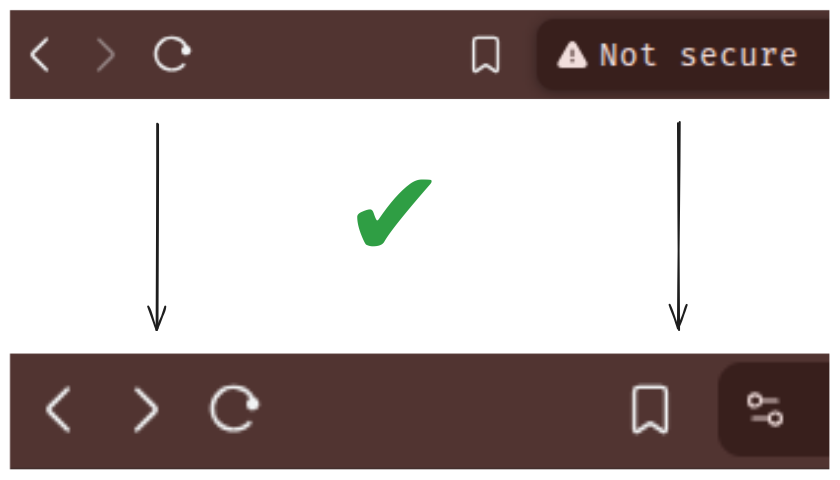
Once the certificate status shows Ready, open your browser and navigate to https://your-domain.com. Green padlock. No warnings. You did it.
Troubleshooting: Certificate Stuck in Pending
Sometimes certificates don’t issue on the first try. Here’s how to diagnose and fix common problems.
Step 1: Check Certificate Status
kubectl get certificate -n test
If READY shows False, dig deeper:
kubectl describe certificate -n test your-domain-tls
Look for the Status section and any events at the bottom. Common messages include “Waiting for CertificateRequest” or “Challenge failed.”
Step 2: Inspect the CertificateRequest
kubectl get certificaterequest -n test
kubectl describe certificaterequest -n test <certificate-request-name>
This shows whether cert-manager successfully created the request and if any validation errors occurred.
Step 3: Check the Challenge
This is usually where things break. The challenge is the actual HTTP-01 validation attempt:
kubectl get challenge -n test
kubectl describe challenge -n test <challenge-name>
Common issues and fixes:
Symptom | Cause | Fix |
|---|---|---|
Waiting for HTTP-01 challenge propagation | Challenge pod/ingress not ready | Wait 90s, check ingress controller logs |
Connection refused or Connection timed out | Port 80 blocked or DNS not resolved | Verify firewall rules, check curl http://your-domain.com/.well-known/acme-challenge/test |
wrong status code: 404 | Ingress not routing challenge path | Ensure acme.cert-manager.io/http01-edit-in-place: "true" annotation is set |
no such host | DNS not propagated | Wait for propagation, verify with dig your-domain.com |
rate limited | Too many failed attempts | Wait 1 hour, use Let’s Encrypt staging first for testing |
Step 4: Test the Challenge Path Manually
Cert-manager creates a temporary ingress rule for the challenge. Verify it’s accessible:
# Get the challenge token (from describe challenge output)
curl -v http://your-domain.com/.well-known/acme-challenge/<token>
If this returns a 404 or connection error, your ingress isn’t routing correctly.
Step 5: Check cert-manager Logs
kubectl logs -n cert-manager deployment/cert-manager -f
Look for errors related to your domain or certificate name.
Nuclear Option: Start Fresh
If everything looks correct but it’s still stuck:
# Delete the certificate (cert-manager will recreate it)
kubectl delete certificate -n test your-domain-tls

# Delete the secret if it exists with bad data
kubectl delete secret -n test your-domain-tls

# Reapply your ingress
kubectl apply -f nginx-ingress.yaml
For debugging, switch to Let's Encrypt staging to avoid rate limits:
server: https://acme-staging-v02.api.letsencrypt.org/directory
Staging certs won't be trusted by browsers, but they'll confirm your setup works before hitting production rate limits.
Future proof
Adding another subdomain is trivial—the wildcard DNS record already points *.your-domain.com at your floating IP. Just create a new ingress resource with:
The subdomain in
spec.rules[].hostA unique
secretNameunderspec.tls[].hostsThe same
cert-manager.io/cluster-issuerannotation
Cert-manager handles the rest. One kubectl apply and you’ve got another HTTPS endpoint. Scale to dozens of services without touching DNS or manually wrangling certificates.
What this costs
Absolutely nothing. Hetzner DNS is free. Let’s Encrypt is free. Cert-manager is open source. Even AWS can’t charge you for this one—though they’ll certainly try with ACM and Route53 if you let them.
What’s next
Your cluster now serves encrypted traffic on a proper domain. The foundation is solid; here’s where to go next:
Setup monitoring — Deploy the Grafana-Prometheus-Loki stack for observability that doesn’t cost $500/month
Back up etcd — Configure Longhorn for daily snapshots before disaster strikes, not after
Deploy something real — Your app, your SaaS, your side project that’s definitely going to be huge
Add DNS-01 challenge — Enable wildcard certificates for internal services and staging environments
The point
A Kubernetes cluster without a domain is not even a toy. A domain without TLS is a liability. This guide bridges both gaps—taking your Hetzner cluster from “floating IP with potential” to “production-ready endpoint with automatic certificate renewal.”
You now control the full stack: infrastructure, DNS, ingress, and encryption. No vendor lock-in, no monthly certificate fees, no 3 AM renewal panics. Just Terraform, cert-manager, and the satisfaction of running your own platform.
The cage is open. Self-host everything at ZipOps.
📬 Want more infrastructure deep-dives? Subscribe to our newsletter for guides on Kubernetes, self-hosting, and escaping cloud vendor lock-in. No spam, just infrastructure.